
What is the relationship between information technology hardware and software?
Information Technology Systems
In the world of hardware, connectivity refers to the ability of a device to link up and communicate with other devices, peripheral hardware, or networks. It’s the “glue” that allows a computer to talk to a printer, a smartphone to sync with a car, or a server to access the internet.
Think of it as the physical and logical bridge between isolated pieces of silicon.
1. Physical vs. Wireless Connectivity
Connectivity is generally split into two categories: how the data travels and what “language” it uses.
Physical (Wired) Connectivity
This involves tangible cables and ports. These are often preferred for stability and high-speed data transfer.+1
- USB (Universal Serial Bus): The gold standard for peripherals like keyboards, mice, and external drives.
- HDMI/DisplayPort: Dedicated to high-definition video and audio.
- Ethernet (RJ45): The backbone of wired networking, providing a direct “hardline” to a router or switch.
- Thunderbolt: A high-speed interface (often using the USB-C shape) that handles data, video, and power simultaneously.
Wireless Connectivity
This allows hardware to communicate through electromagnetic waves, offering mobility and convenience.
- Wi-Fi: Local area networking for internet access and file sharing.
- Bluetooth: Short-range communication for accessories like headphones and wearables.
- Cellular (5G/LTE): Long-range connectivity for mobile hardware via carrier towers.
- NFC (Near Field Communication): Extremely short-range (inches) used for things like tap-to-pay.
2. The Connectivity Hierarchy
To understand how hardware connects, it helps to look at the “where” and “how far”:
| Level | Description | Examples |
| Internal | How components inside a case talk to each other. | PCIe slots, SATA cables, RAM DIMM slots. |
| Peripheral | Connecting external tools to a main station. | USB-C monitors, wireless mice. |
| Network | Connecting multiple independent systems. | Routers, Mesh Wi-Fi systems, LAN. |
| Cloud/IoT | Hardware talking to remote servers over the web. | Smart thermostats, security cameras. |
3. Why It Matters: Compatibility & Throughput
When discussing hardware connectivity, two technical factors usually dominate the conversation:
- Bandwidth (Throughput): This is the “width of the pipe.” For example, a USB 2.0 port is much slower than a USB 4.0 port. If you’re a video editor, your connectivity choices (like using Thunderbolt 4) dictate how fast you can work.
- Form Factor: This is the physical shape of the connector. While a USB-C cable might fit into a port, the internal hardware must support the specific protocol (like Power Delivery or Display Alt Mode) for it to actually work.
A quick note on “Legacy” Connectivity: You might still see older hardware using VGA or Serial ports. While these are technically “connected,” they represent the evolution of hardware—moving from analog, bulky pins to digital, streamlined “all-in-one” ports.
What is hardware connectivity and can a computer or laptop be considered a network?
To put it simply, hardware connectivity is the “handshake” between two pieces of equipment. It is the combination of physical ports, cables, and wireless signals that allow data to flow from one device to another. Without connectivity, a computer is just a very expensive calculator sitting in a vacuum.
1. Can a computer be considered a network?
The short answer is: No, a single computer is not a network, but it can act as the “brain” or a “node” of one.
By definition, a network requires at least two entities to be connected. However, the confusion often stems from two specific roles a computer can play:
- The “Host” or Access Point: Your laptop can “become” a network if you turn on a Mobile Hotspot. In this mode, the laptop manages the traffic for other devices (phones, tablets), effectively acting as a software-defined router.+1
- A Node: In a standard network, your computer is a “node”—a single point of connection that sends and receives data.
- Virtual Networks: Inside a single powerful computer, you can run multiple “Virtual Machines” (VMs). These VMs can be networked together internally, creating a “network-in-a-box” that exists entirely within the hardware’s memory.+1
2. The Mechanics of Hardware Connectivity
Connectivity is usually categorized by the “direction” and “distance” of the data flow.
Internal Connectivity (The Nervous System)
Before a computer can talk to the outside world, its internal parts must talk to each other.
- Bus: The internal “highway” on the motherboard (like PCIe) that connects the CPU to the GPU or SSD.
- SATA/NVMe: Specific connections designed purely for high-speed storage.
External Connectivity (The Senses)
This is how the computer interacts with you and other machines.
- I/O Ports: Input/Output ports like USB-C, HDMI, and Ethernet.
- Wireless Radios: Internal chips for Wi-Fi, Bluetooth, and sometimes 5G.
3. Wired vs. Wireless: A Quick Comparison
| Feature | Wired (Ethernet/USB) | Wireless (Wi-Fi/Bluetooth) |
| Reliability | Extremely high; no signal interference. | Prone to “dead zones” and interference. |
| Speed | Generally faster and consistent. | Varies based on distance from the source. |
| Security | Harder to “hack” (requires physical access). | Easier to intercept if not encrypted. |
| Convenience | Low (tethered by a cord). | High (total mobility). |
4. The “Language” of Connectivity (Protocols)
Having a physical plug is only half the battle. Hardware connectivity also relies on Protocols—the rules of the conversation.
- Physical Layer: The shape of the USB-C plug.
- Protocol Layer: Whether that USB-C plug is sending “DisplayPort” signals (video) or “Power Delivery” (charging).
Peer Tip: This is why sometimes you plug a phone into a laptop and it charges but doesn’t show your photos. The physical connectivity is there, but the data protocol hasn’t been established!
What is external connectivity?
External connectivity refers to any method used to link a computer or hardware device to the “outside world”—be that a peripheral (like a mouse), another computer, or the internet.
While internal connectivity happens inside the “box” (CPU to RAM, for example), external connectivity happens across the device’s outer boundary. It is the bridge that allows a standalone piece of hardware to become part of a larger ecosystem.
1. The Two Pillars: Wired vs. Wireless
External connectivity is categorized by how the data physically travels.
Wired External Connectivity (I/O Ports)
This relies on physical cables and connectors. It is generally faster, more secure, and provides lower latency (delay) than wireless.
- Data & Peripherals: USB-A, USB-C, and Thunderbolt are the most common. They handle everything from keyboards to high-speed external hard drives.
- Video & Audio: HDMI, DisplayPort, and the 3.5mm audio jack. These transmit specialized signals to monitors, projectors, and speakers.
- Networking: The Ethernet (RJ45) port is the primary wired connection for local area networks (LANs).
Wireless External Connectivity (Radio Waves)
This uses radio frequencies to transmit data through the air, offering mobility at the cost of potential interference.
- Wi-Fi (WLAN): Connects the device to a local network and the internet.
- Bluetooth (WPAN): A “Personal Area Network” used for short-range connections to peripherals like headphones or watches.
- Cellular (4G/5G): Connects mobile hardware directly to a carrier’s wide-area network.
- NFC: Used for instant, proximity-based data exchange (like mobile payments).
2. Why “External” Matters: The Ecosystem
External connectivity determines what your hardware is capable of doing beyond its own processing power.
- Expansion: Through a single Thunderbolt port, a laptop can connect to a “Docking Station” that adds three monitors, a full keyboard, and a wired internet connection.
- Communication: Without external connectivity (Wi-Fi or Ethernet), a computer cannot access the cloud, send emails, or update its software.
- Human Interface: Most of the ways we interact with hardware—screens, keyboards, and VR headsets—rely entirely on external connection standards.
3. Physical Port vs. Logical Protocol
A common point of confusion is the difference between the plug (the physical shape) and the protocol (the language it speaks).
| Connection Type | Physical Shape | Common Protocols (Languages) |
| USB-C | Oval, reversible plug | USB 3.2, Thunderbolt 4, DisplayPort, Power Delivery |
| HDMI | Trapezoid-like plug | HDMI 2.1 (Video/Audio), CEC (Device control) |
| Wi-Fi | Invisible (Internal Antenna) | 802.11ax (Wi-Fi 6), 802.11be (Wi-Fi 7) |
4. Factors That Impact Quality
When choosing external connectivity, three things matter most:
- Bandwidth: How much data can fit through the connection per second (measured in Gbps).
- Range: How far the device can be from the connection point (crucial for Wi-Fi and Bluetooth).
- Power Delivery: Can the connection also charge the device? (e.g., charging a laptop through a monitor via USB-C).
What are mouse and keyboard ports?
Mouse and keyboard ports are the physical entry points on a computer that allow these input devices to send signals to the processor. Over the decades, these have evolved from bulky, specialized plugs to the tiny, universal connectors we use today.
1. Modern Standard: USB (Universal Serial Bus)
Currently, almost every wired mouse and keyboard uses a USB port. These are “hot-swappable,” meaning you can plug or unplug them while the computer is running without needing to restart.+1
- USB-A: The classic rectangular port. This is the most common connection for desktop peripherals.
- USB-C: The newer, smaller, reversible port. Many modern laptops (and high-end mechanical keyboards) have shifted to this standard.+1
- Wireless Dongles: Most “wireless” mice still technically use a USB port via a tiny 2.4GHz receiver that plugs into the computer to talk to the device.
2. Legacy Standard: PS/2 Ports
Before USB became the “Universal” standard, computers used PS/2 ports. These are round, 6-pin connectors that were strictly color-coded to prevent people from plugging the mouse into the keyboard hole:+1
- Purple: Dedicated to the Keyboard.
- Green: Dedicated to the Mouse.
Why do they still exist? You might still see a “combo” PS/2 port (half-purple, half-green) on modern gaming motherboards. Some enthusiasts prefer them because PS/2 is interrupt-based—the keyboard tells the CPU immediately when a key is pressed—whereas USB “polls” the keyboard at set intervals, which can technically introduce a tiny amount of lag.
3. Comparison of Connection Types
| Port Type | Shape/Style | Key Characteristic |
| USB-A | Rectangular | Universal; found on almost all PCs. |
| USB-C | Small Oval | Reversible; supports faster data and power. |
| PS/2 | Round 6-pin | Legacy; “Interrupt” signaling for zero-lag. |
| Bluetooth | Wireless | No physical port; uses an internal radio chip. |
4. Vintage “Ancestor” Ports
If you are working with hardware from the 80s or early 90s, you might run into these:
- DIN-5: A large, circular 5-pin connector used for keyboards on original IBM-style PCs.
- Serial Port (DB9): A D-shaped 9-pin port often used for mice before PS/2 was invented.
- ADB (Apple Desktop Bus): A specialized port used by older Macintosh computers to “daisy-chain” (plug the mouse into the keyboard, then the keyboard into the Mac).
5. Hubs and Adapters
Since many modern laptops (like MacBooks) only have USB-C ports, you often need a USB Hub or Dongle. This acts as a translator, allowing you to plug your older USB-A mouse or keyboard into a newer, smaller port.
What are video ports?
Video ports are the external connection points on a computer, laptop, or media device that output visual data to a display, such as a monitor, TV, or projector.
Unlike USB ports, which handle general data, video ports are engineered to transmit massive amounts of information at high speeds to maintain clear images and smooth motion.
1. Modern Digital Video Ports
These are the standard ports found on almost all hardware produced in the last decade. They transmit digital signals, which means the image is crisp and less prone to interference.
HDMI (High-Definition Multimedia Interface)
The most common port in the world. It carries both uncompressed video and multi-channel audio in a single cable.
- Use Case: TVs, gaming consoles (PS5/Xbox), and most laptops.
- Versions: Higher versions like HDMI 2.1 support 4K resolution at 120Hz or even 8K video.
DisplayPort (DP)
The preferred choice for PC gamers and creative professionals. It often supports higher refresh rates and higher resolutions than HDMI at the same “generation.”
- Use Case: High-end desktop monitors and Graphics Cards (GPUs).
- Key Feature: Supports “Daisy Chaining,” allowing you to connect one monitor into another using a single port on your PC.
USB-C (with DisplayPort Alt Mode)
Many modern, thin laptops (like MacBooks) lack dedicated HDMI ports. Instead, they use USB-C to send video signals.
- Note: Not every USB-C port supports video. Look for a small “D-shaped” (DisplayPort) icon or a lightning bolt (Thunderbolt) next to the port.
2. Legacy (Analog) Video Ports
If you are working with older office equipment or vintage gaming consoles, you will encounter these “analog” standards.
| Port Type | Appearance | Characteristics |
| VGA | Blue, 15-pin D-shape | Analog only. No audio. Max resolution is limited and can look “blurry.” |
| DVI | Large, white rectangle | A “bridge” tech. Some versions are digital (DVI-D), others are analog (DVI-A). |
3. Key Concepts to Know
When dealing with video connectivity, the port is only half the story:
- Refresh Rate (Hz): How many times per second the screen updates. A DisplayPort 1.4 connection might allow 144Hz, while an older HDMI port might cap you at 60Hz.
- Resolution: The number of pixels. Higher resolutions (like 4K or 8K) require cables and ports with higher bandwidth.
- Adapters: You can usually convert a “Digital” signal to another “Digital” signal (e.g., HDMI to DisplayPort) with a simple cable. However, converting “Digital” to “Analog” (e.g., HDMI to VGA) requires an active converter box.
4. Quick Comparison Table
| Port | Best For | Carries Audio? | Primary Industry |
| HDMI | General Home Media | Yes | Consumer Electronics |
| DisplayPort | High-end PC Gaming | Yes | Computing/IT |
| USB-C | Modern Portability | Yes | Laptops/Mobile |
| VGA | Legacy Projectors | No | Education/Older Offices |
What are audio ports?
Audio ports are the specialized connection points on a hardware device—like a computer, smartphone, or amplifier—designed to input or output sound signals. They bridge the gap between your digital files and the physical speakers or microphones that move air to create sound.
In the hardware world, audio ports are unique because they deal with both analog (electrical waves) and digital (binary data) signals.
1. The Universal Standard: The 3.5mm Jack
The most recognizable audio port is the 3.5mm (1/8″) analog jack. It has been the industry standard for decades. On a PC motherboard, these are often color-coded to help you plug the right cable into the right hole:
- Lime Green: The primary “Line Out” for headphones or front speakers.
- Pink: The “Mic In” for a dedicated microphone.
- Light Blue: “Line In” for recording from external sources like an electric guitar or MP3 player.
- Orange/Black/Grey: Used for multi-channel “Surround Sound” setups (subwoofers and rear speakers).
2. Modern Digital Audio Ports
As audio quality improved, manufacturers moved toward digital connections to eliminate the “hiss” or electrical interference sometimes found in analog cables.
Optical (S/PDIF)
This port uses fiber optics (pulses of light) to transmit audio. It is common on high-end PCs and home theater receivers. Because it uses light instead of electricity, it is immune to electromagnetic interference.
- Look for: A small square-ish port with a “trapdoor” that glows red when the device is on.
HDMI and DisplayPort
While we think of these as “video ports,” they are actually the most powerful audio ports in a modern house. They can carry uncompressed, high-definition 7.1 surround sound (like Dolby Atmos) alongside the video signal.
USB-C and Lightning
With many smartphones removing the 3.5mm jack, the charging port has taken over audio duties. These ports send digital data to a “DAC” (Digital-to-Analog Converter) located inside your headphones or a dongle.
3. Professional and Specialized Ports
If you venture into music production or high-end hi-fi systems, you’ll see larger, more rugged ports:
- 1/4″ (6.35mm) Jack: The “big brother” to the 3.5mm jack, used for professional headphones and electric guitars.
- XLR: A circular 3-pin connector used for professional studio microphones. It is “balanced,” meaning it can run very long distances without picking up noise.
- RCA: The classic Red and White circular plugs used for stereo audio in older TVs and turntables.
4. Summary Table
| Port Type | Signal Type | Common Use Case |
| 3.5mm Jack | Analog | Wired headphones and PC speakers. |
| Optical (TOSLINK) | Digital (Light) | Soundbars and Home Theater systems. |
| HDMI | Digital | TVs and modern gaming consoles. |
| USB-C | Digital | Modern smartphones and digital headsets. |
| XLR | Analog (Balanced) | Studio microphones and stage equipment. |
Understanding “TRRS” vs “TRS”
Have you ever noticed the rings on an audio plug?
- 2 Rings (TRS): Left audio, Right audio, and Ground. (Standard headphones).
- 3 Rings (TRRS): Adds a fourth channel for a Microphone. This is why your phone headset can both play music and take calls through a single jack.
What are eSATA ports?
eSATA (External Serial Advanced Technology Attachment) is a specialized hardware port designed to connect external storage devices—like hard drives and SSDs—to a computer.
Before USB 3.0 became fast and reliable, eSATA was the “gold standard” for professionals who needed to move large files quickly. It essentially took the high-speed SATA connection used for internal hard drives and extended it to the outside of the computer case.
1. Why eSATA Was Created
In the mid-2000s, the common external connection was USB 2.0, which was painfully slow (480 Mbps). If you had a fast hard drive, the USB cable acted like a bottleneck, slowing the drive down to a fraction of its potential speed.
eSATA solved this by offering a “point-to-point” connection that ran at the same speed as an internal drive (3 Gbps or 6 Gbps), with zero translation overhead. To the computer, an eSATA drive looked and behaved exactly like an internal one.
2. Key Characteristics of eSATA
- Speed: Matches the internal SATA standard (SATA 3.0 provides up to 6 Gbps).
- Durability: The eSATA connector is more rugged than the flimsy internal SATA plug and is designed to be plugged and unplugged thousands of times.
- Shielding: The cables are shielded to prevent electromagnetic interference (EMI) since they exist outside the grounded metal computer case.
- Hot-Swapping: Unlike older internal drives, eSATA supports “Hot-Plugging,” meaning you can connect or disconnect the drive while the PC is on (provided your motherboard settings allow it).
3. The “Power” Problem: eSATA vs. eSATAp
The biggest downside to the original eSATA design was that it did not carry power. While a USB drive gets its electricity from the USB port, an eSATA drive required a separate power brick plugged into a wall outlet.
To fix this, a hybrid port called eSATAp (Power over eSATA) was developed.
- It combined the data pins of eSATA with the power pins of USB.
- These ports are “universal”—you can plug in an eSATA cable, a USB-A cable, or a special eSATAp cable that powers the drive.
4. Why You See It Less Often Today
eSATA has largely been replaced by USB 3.1/4.0 and Thunderbolt.
| Feature | eSATA | USB 3.2 (Gen 2) | Thunderbolt 4 |
| Max Speed | 6 Gbps | 10 Gbps | 40 Gbps |
| Power | No (unless eSATAp) | Yes | Yes (Up to 100W) |
| Commonality | Rare / Legacy | Universal | High-end / Pro |
Today, you will mostly find eSATA ports on older desktop motherboards, specialized “External Drive Enclosures,” or high-end Network Attached Storage (NAS) devices used for expanding server capacity.
What are network ports?
In hardware, network ports are the physical interfaces used to connect a device to a local area network (LAN) or the internet. While “ports” can also refer to software (like Port 80 for web traffic), in a hardware context, we are talking about the sockets where you plug in cables or the antennas that broadcast signals.
The most common network port is the RJ45 (Registered Jack 45), often simply called the “Ethernet port.”
1. Ethernet (RJ45) Ports
This is the rectangular socket found on the back of desktop PCs, routers, switches, and some laptops. It is designed for twisted-pair cabling (Cat5e, Cat6, etc.).
- Indicator Lights: Most Ethernet ports have two tiny LEDs. A solid green light usually means a physical connection is detected, while a blinking amber light indicates data is currently being transmitted.
- Speed Tiers: Ethernet ports are rated by their maximum “throughput”:
- Fast Ethernet: 100 Mbps (older standard).
- Gigabit Ethernet (GbE): 1,000 Mbps (1 Gbps)—the modern baseline.
- Multi-Gigabit: 2.5 Gbps, 5 Gbps, or 10 Gbps—found on high-end workstations and servers.
2. Fiber Optic Ports (SFP/SFP+)
In professional networking or data centers, standard copper Ethernet cables aren’t fast enough or can’t travel long distances. Instead, hardware uses SFP (Small Form-factor Pluggable) ports.
- Modular Design: These ports are actually “cages.” You insert a transceiver module into the cage, and then plug a fiber optic cable into that module.
- Purpose: These are used for “backbone” connections between floors of a building or between servers in a rack, supporting speeds from 10 Gbps up to 400 Gbps in high-end gear.
3. Wireless Network “Ports”
While not a “hole” you plug a wire into, wireless hardware uses specific physical components to handle networking:
- Antenna Ports (SMA): On the back of routers or Wi-Fi cards, you’ll see gold-threaded stubs. These are SMA connectors where antennas are screwed in to broadcast and receive Wi-Fi signals.
- M.2 Wi-Fi Slots: Internally, laptops have a tiny slot on the motherboard specifically for a network card that handles both Wi-Fi and Bluetooth connectivity.
4. Comparison Table: Wired Network Ports
| Port Type | Cable Type | Max Distance | Common Use |
| RJ45 (Ethernet) | Copper (Cat6) | 100 meters | Home PCs, consoles, printers. |
| SFP/SFP+ | Fiber Optic | Up to 10 km+ | Servers, switches, ISPs. |
| USB to Ethernet | Adapter/Dongle | Limited by USB | Laptops without built-in ports. |
5. The Role of the MAC Address
Every physical network port has a unique “fingerprint” hardcoded into it by the manufacturer, known as a MAC Address (Media Access Control). While your IP address changes depending on which Wi-Fi you join, the MAC address of your hardware port stays the same, allowing the network to identify exactly which piece of hardware is talking.
Note on Modern Laptops: Because modern laptops are becoming thinner, many have removed the bulky RJ45 port. Users now typically use USB-C to Ethernet adapters or Docking Stations to get a physical network connection.
What are modem and serial ports?
In the history of hardware connectivity, Modem and Serial ports are the veteran technologies that paved the way for modern internet and peripheral connections. While they look somewhat similar and both transmit data “sequentially” (one bit at a time), they serve different purposes.
1. Serial Ports (DB9)
The Serial port (often called a COM port) was the “USB of its day.” For decades, it was the standard way to connect a mouse, a keyboard, or even early digital cameras to a computer.
- The Connector: Most commonly seen as a DB9 connector—a D-shaped port with 9 pins.
- How it Works: It sends data in a single stream, one bit after another. While slow by today’s standards, it is incredibly reliable over long distances.+1
- Where it is today: You won’t find these on modern consumer laptops, but they are still widely used in industrial equipment, networking switches (for “console” access), and medical devices because of their simplicity and stability.
2. Modem Ports (RJ11)
A modem port is designed specifically to connect a computer to a telephone line. This allowed the computer to communicate over the Public Switched Telephone Network (PSTN) to reach an ISP (Internet Service Provider).
- The Connector: It uses an RJ11 jack. It looks very similar to an Ethernet (RJ45) port but is noticeably smaller and typically only has 4 pins (though only 2 are usually used).
- How it Works: The “Modem” (an abbreviation for Modulator-Demodulator) converts the computer’s digital data into audible analog sounds to travel over phone lines, and vice versa. This is the source of the famous “screeching” sound of 1990s dial-up internet.
- Where it is today: Mostly obsolete in the age of Broadband (Fiber/Cable), though some legacy fax machines and dial-up systems in rural areas still use them.
3. Comparison: Serial vs. Modem
| Feature | Serial Port (DB9) | Modem Port (RJ11) |
| Shape | D-shaped with 9 metal pins. | Small square plastic “clip” hole. |
| Primary Goal | Connecting local hardware (Mouse/Scanner). | Connecting to a remote network via Phone. |
| Signal | Digital. | Analog (converted from Digital). |
| Modern Status | Industrial/Specialized use. | Largely replaced by Ethernet/Wi-Fi. |
4. The Modern “USB-to-Serial” Era
Since most modern computers no longer have a physical DB9 serial port, professionals who need to program hardware (like a router or an industrial controller) use a USB-to-Serial adapter.
This hardware “translates” the modern USB language back into the old-school Serial language, allowing new laptops to talk to 30-year-old machinery.
What is network cabling?
Network cabling is the physical hardware used to connect devices—such as computers, routers, and switches—to facilitate the transfer of data across a network. It acts as the “veins” of a communication system, carrying electrical or light signals from one point to another.
While Wi-Fi is popular, cabling remains the backbone of the internet and corporate offices because it offers superior speed, security, and reliability.
1. Types of Network Cables
There are three main types of cables used in hardware connectivity today.
Twisted Pair (Ethernet)
This is the most common type of network cable. It consists of pairs of copper wires twisted together to reduce electromagnetic interference.
- Unshielded Twisted Pair (UTP): Common in homes and offices.
- Shielded Twisted Pair (STP): Used in industrial environments where there is high electrical interference.
- Categories: These define the speed and frequency the cable can handle:
- Cat5e: Up to 1 Gbps (Standard for many older homes).
- Cat6: Up to 10 Gbps over short distances.
- Cat6a/Cat7: Optimized for 10 Gbps over longer distances and higher frequencies.
Fiber Optic Cable
Instead of electricity, fiber optics use pulses of light sent through strands of glass or plastic.
- Pros: Incredible speed, can travel miles without losing signal, and is immune to electrical interference.
- Cons: More expensive and fragile than copper.
- Types: Single-mode (for very long distances like city-to-city) and Multi-mode (for shorter distances like within a data center).
Coaxial Cable
Once the standard for networking, “Coax” is now primarily used by Internet Service Providers (ISPs) to bring the internet from the street into your modem. It features a central copper conductor surrounded by an insulating layer and a metallic shield.
2. Connectors: The “Ends” of the Cable
A cable is only useful if it can plug into a port. Each cable type has a specific connector:
- RJ45: The standard plug for Ethernet cables (looks like a wide phone jack).
- SFP/SFP+ Modules: Used to connect fiber cables to high-end network switches.
- LC/ST/SC: Various shapes of “tips” for fiber optic cables.
- F-Type: The screw-on connector used for Coaxial (cable TV/internet).
[Image comparison of RJ45, LC fiber connector, and F-type coaxial connector]
3. Wired vs. Wireless (The Case for Cables)
In hardware circles, there is a saying: “Wire what you can, wireless what you must.” Here is why cabling is often preferred over Wi-Fi:
| Feature | Network Cabling (Wired) | Wi-Fi (Wireless) |
| Latency | Extremely low (perfect for gaming/calls). | Higher and fluctuates. |
| Bandwidth | Consistent and dedicated. | Shared among all devices. |
| Interference | Minimal (especially with shielded cables). | Blocked by walls, microwaves, and neighbors. |
| Security | Requires physical access to tap into. | Signals can be intercepted from outside. |
4. Structured Cabling
In large buildings, network cabling is organized into a system called Structured Cabling. This involves:
Patch Panels: A central “switchboard” where all the cables from different rooms meet.
Racks: Metal frames that hold the servers and switches.
Horizontal Cabling: The wires running through the walls and ceilings to the wall jacks in your office.
What are integrated motherboard ports?
Integrated motherboard ports (also known as the I/O panel or back panel) are the built-in connection points soldered directly onto a computer’s motherboard. They are accessible through the rear of a desktop computer case.
Unlike “headers” (which are pins inside the case used to connect front-panel buttons), integrated ports are fixed and provide the primary way to connect your external peripherals and network.
1. The Rear I/O Panel
The collection of integrated ports is typically grouped together in a rectangular area. Most motherboards come with an I/O Shield—a thin metal plate that snaps into the computer case to label these ports and protect against electromagnetic interference.
2. Common Integrated Ports
While the exact layout depends on whether you have a budget or high-end motherboard, you will almost always find these categories:
USB Ports (General Data)
- USB 2.0 (Black): Used for low-speed devices like keyboards and mice.
- USB 3.2 (Blue/Teal/Red): High-speed ports for external hard drives and webcams.
- USB-C: A small, reversible port for modern mobile devices and high-speed docking stations.
Video Ports (Integrated Graphics)
If your CPU has built-in graphics, these ports allow you to plug in a monitor without a dedicated graphics card.
- HDMI / DisplayPort: The modern digital standards.
- VGA / DVI: Found on older or “business-class” motherboards.
Networking & Audio
- Ethernet (RJ45): The integrated port for a wired internet connection.
- Audio Jacks: Usually a set of three to six 3.5mm color-coded holes for speakers, microphones, and line-in audio.
- Optical Audio (S/PDIF): A square port for digital audio output to soundbars or receivers.
Legacy Ports
- PS/2: The round purple/green port for older keyboards and mice.
- Wi-Fi Antenna Connectors: Two gold-threaded stubs found on motherboards with “Wi-Fi” in the name.
3. Integrated vs. Discrete Ports
It is important to distinguish between ports integrated into the motherboard and those on Expansion Cards.
- Integrated: Soldered to the motherboard. If a port breaks, you usually have to replace the whole board or buy an adapter.
- Discrete (Expansion): Found on cards plugged into the PCIe slots (like a dedicated GPU or a dedicated Sound Card).
- Crucial Tip: If you have a dedicated Graphics Card (GPU), you should plug your monitor into the GPU ports (located lower down on the case) rather than the integrated motherboard video ports, or you won’t get the benefit of your powerful graphics card.
[Image comparing the position of integrated motherboard video ports vs dedicated graphics card ports on a PC case]
4. Why the Number of Ports Matters
When buying a motherboard, the “Integrated I/O” is a major selling point.
- Phase Power: Higher-end boards often have more USB ports to handle many peripherals.
- BIOS Flashback: Some boards include a specific integrated USB port and a button that allows you to update the motherboard’s “brain” (BIOS) without even having a CPU installed.
- Speed: Better motherboards integrate 10 Gbps or 20 Gbps USB ports, whereas budget boards may only offer 5 Gbps.
What are ports and how can their function be identified?
In hardware, ports are the physical connection points (interfaces) that allow external devices to communicate with a computer’s internal circuitry. You can think of them as specialized “docks” where data, power, or audiovisual signals enter and exit the system.
Identifying their function can be done through four primary methods: shape, color, symbols, and labels.
1. Identification by Shape and Size
The physical geometry of a port is the most immediate way to identify its function. Most ports are designed with “keying,” meaning they are shaped so that a cable can only be inserted in the correct orientation.
- USB-A: Rectangular and flat; the most common for mice and keyboards.
- USB-C: Small, oval, and reversible.
- HDMI: A wide, trapezoidal shape with flattened corners.
- Ethernet (RJ45): A square-ish hole with a notch at the bottom for a plastic clip.
- DisplayPort: Similar to HDMI but with one corner perfectly square and the other angled.
2. Identification by Color Coding
Many manufacturers follow industry-standard color schemes to help users identify the speed or purpose of a port at a glance.
USB Ports
| Color | Standard | Function |
| White | USB 1.0/1.1 | Legacy, very slow (rare today). |
| Black | USB 2.0 | Standard speed; best for keyboards/mice. |
| Blue | USB 3.0 / 3.1 Gen 1 | High-speed (5 Gbps); for hard drives. |
| Red / Teal | USB 3.1 Gen 2 / 3.2 | SuperSpeed+ (10 Gbps+). |
| Yellow / Orange | “Sleep-and-Charge” | Provides power even when the PC is turned off. |
Audio Ports
- Green: Line Out / Headphones.
- Pink: Microphone.
- Blue: Line In (Auxiliary audio).
3. Identification by Symbols (Icons)
Small icons are often etched or printed next to ports to clarify their specific capabilities, especially when the port shape is ambiguous (like USB-C).
- Lightning Bolt: Indicates a Thunderbolt port (high-speed data, video, and charging).
- SS (with a number): Stands for “SuperSpeed.” The number (e.g., 10 or 20) tells you the speed in Gbps.
- D-Shape (inside a P): Indicates DisplayPort Alt Mode, meaning that specific USB-C port can output video to a monitor.
- Three Rectangles (linked): The symbol for a Network (Ethernet) connection.
- Battery Icon: Indicates the port is optimized for charging external devices.
4. Identification by Labels
On many laptops and desktops, ports are simply labeled with text or abbreviations.
- “DC-In”: Where you plug in the power adapter.
- “HDMI”: High-Definition Multimedia Interface.
- “COM”: Communication (Serial) port.
- “Kensington Lock”: A small, reinforced hole used for security cables to prevent theft.
Summary Checklist for Identification
If you are staring at a mystery port, ask yourself these three questions:
- Does it have pins or a hole? (Pins usually imply legacy/analog like VGA; holes imply modern/digital like HDMI).
- Is there a color? (Blue is fast data; Green is sound).
- Is there a symbol nearby? (The lightning bolt is the “super-tool” of ports).
What is using appropriate titles as a soft skill?
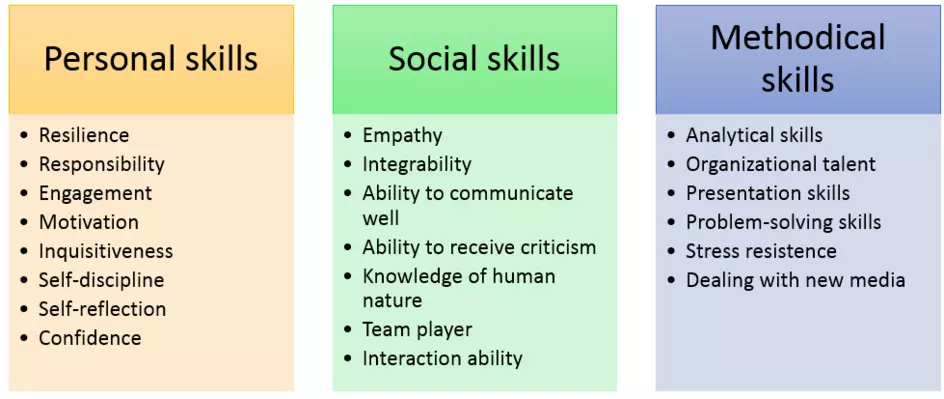
In the context of professional communication, using appropriate titles is a specific soft skill rooted in situational awareness, etiquette, and interpersonal respect.
It involves the ability to identify the correct way to address someone based on their professional standing, academic achievements, or cultural background. While it sounds simple, it is a nuanced part of “Business Intelligence” that impacts how others perceive your professionalism and attention to detail.
1. Why it is Considered a Soft Skill
Using appropriate titles isn’t just about memorizing names; it demonstrates several core soft skills:
- Adaptability: The ability to switch between “Casual/Internal” (Hey Dave) and “Formal/External” (Dear Dr. Smith) depending on the setting.
- Emotional Intelligence (EQ): Recognizing that some people value their titles as a reflection of their hard work (e.g., a PhD holder or a military officer).
- Cultural Competence: Understanding that naming conventions differ globally (e.g., in some cultures, addressing a superior by their first name is a serious breach of respect).
2. Key Categories of Titles
Mastering this skill requires knowing which “bucket” the person falls into:
| Category | Examples | Use Case |
| Academic | Dr., Professor, Dean | Used in research, medicine, and higher education. |
| Professional | CEO, Chairperson, Counsel | Used in formal business correspondence or legal filings. |
| Honorific | Mr., Ms., MX. | Standard formal address; “Ms.” is preferred over “Mrs.” in business unless specified. |
| Government | The Honorable, Senator, Judge | Strict protocol used in public service and law. |
3. The “Rules of Thumb” for Professionalism
If you are unsure how to address someone, the following hierarchy is generally accepted as the “safe” path:
- Start Formal: It is always easier to be “too formal” and be told, “Please, call me Bob,” than to be too casual and offend a potential client or employer.
- Mirror the Other Person: If an executive signs their email as “Dr. Sarah Jenkins,” address your reply to “Dr. Jenkins.” If they sign it “Sarah,” you may move to first names in the next exchange.
- Check the “About Us” or LinkedIn: Always verify a title before a high-stakes meeting. Referring to a “Doctor” as “Mr./Ms.” suggests you haven’t done your homework.
- Neutrality: When gender is unknown or irrelevant, using the person’s full name (e.g., “Dear Alex Smith”) or a gender-neutral title like “Mx.” is a sign of modern inclusivity.
4. Common Pitfalls to Avoid
- Assuming Marital Status: Using “Mrs.” instead of “Ms.” can be seen as outdated or intrusive in a professional setting.
- Misidentifying the PhD: In academic and medical circles, failing to use “Dr.” is often seen as a lack of respect for the individual’s expertise.
- The “Hey Guys” Trap: Using overly familiar or gendered slang in a formal email or a meeting with high-level stakeholders.
Pro-Tip: Using titles correctly is like wearing a well-tailored suit. Most people won’t comment on it if you get it right, but everyone notices if you get it wrong.
How is information technology systems affected in this world of a.i.?
In the current landscape of 2026, Artificial Intelligence hasn’t just been “added” to IT systems; it has fundamentally rewritten how they are built, secured, and maintained. We have moved from deterministic systems (if X, then Y) to probabilistic systems (if X, then Y is the most likely outcome).
Here is how the core pillars of IT have been transformed:
1. Infrastructure and Hardware Evolution
Standard CPUs are no longer the solo stars of the data center. AI requires massive parallel processing, which has changed the physical makeup of IT hardware.+1
- GPU and NPU Dominance: IT departments now manage clusters of GPUs (Graphics Processing Units) and NPUs (Neural Processing Units) specifically designed for AI workloads.
- Edge AI: Instead of sending all data to a central cloud, “Edge” hardware (like smart cameras or factory sensors) now has integrated AI chips to process data locally in real-time.
- Thermal Management: Because AI chips run extremely hot, modern server rooms have shifted toward liquid cooling solutions over traditional air conditioning.
2. Cyber Defense: “AI vs. AI”
Security has become an automated arms race. Traditional firewalls that looked for “known signatures” are now largely obsolete.
- Anomaly Detection: AI systems monitor network traffic patterns. If a user suddenly accesses files in a way that deviates 1% from their historical behavior, the system can lock the account in milliseconds.
- Automated Phishing: On the flip side, IT systems now face “Deepfake” attacks where AI-generated voices or videos try to trick employees. IT must now implement Zero Trust architectures where identity is constantly verified.
- Self-Healing Networks: Modern IT systems can identify a failing switch or a software bug and automatically reroute traffic or apply a patch before a human admin even wakes up.
3. Data Management and “Data Lakes”
In the past, IT systems stored data just for record-keeping. Now, data is the “fuel” for AI, changing how it is stored.
- Vector Databases: Traditional row-and-column databases are being supplemented by Vector Databases. These allow AI to search for “meaning” and “context” rather than just keywords.+1
- Data Governance: IT teams now spend more time on “Data Hygiene”—ensuring that the information fed into an AI is unbiased, legal, and accurate. If the data is “garbage,” the AI output will be “garbage.”
4. The Shift in Human Roles (DevOps to AIOps)
The day-to-day job of IT professionals has shifted from manual configuration to AIOps (Artificial Intelligence for IT Operations).
- Code Generation: Software engineers now use AI “copilots” to write baseline code, shifting their focus to architectural design and security auditing rather than syntax.
- Natural Language Interfaces: You no longer need to know complex “Command Line” code to query a system. Admins can now ask the system, “Show me all servers running at over 80% capacity,” and the AI executes the technical query.
5. Energy and Sustainability Challenges
A major, often overlooked effect is the power demand.
- Energy Consumption: An AI-powered search or process can consume significantly more electricity than a traditional one.
- Sustainable IT: IT strategy now heavily involves “Green Computing,” where systems are programmed to run heavy AI training tasks only when renewable energy (like solar or wind) is at peak production.
Summary: We are moving from Static IT (tools that wait for instructions) to Agentic IT (systems that observe, suggest, and act autonomously).
Will an I.T. technician have to know how to fix an a.i. just like an operating system?
In short: Yes, but “fixing” an AI looks very different from fixing a traditional operating system (OS).
As an IT technician in 2026, you likely won’t be rewriting the neural network’s code, but you will be responsible for the environment that allows the AI to function. If an OS “breaks,” it usually crashes or freezes; when an AI “breaks,” it often provides incorrect information (hallucination) or suffers from “performance drift.”
1. Traditional OS Repair vs. AI Repair
| Task | Traditional OS Troubleshooting | AI System Troubleshooting |
| Diagnostics | Checking Error Logs (Blue Screen codes). | Checking Inference Latency and Token Usage. |
| The “Fix” | Patching software or reinstalling drivers. | Fine-tuning, adjusting “Temperature,” or updating the Vector Database. |
| Resource Issue | CPU/RAM spikes due to a “runaway” process. | GPU/NPU bottlenecks or “Out of Memory” (OOM) errors during processing. |
| Security | Removing viruses or malware. | Preventing Prompt Injection or “Data Poisoning.” |
2. The IT Technician’s New “Toolbox”
An IT technician will need to master three specific areas to “fix” AI systems:
A. The Hardware Stack (Physical Connectivity)
AI is hardware-hungry. You will be troubleshooting the physical components that traditional OSs rarely pushed to the limit.
- Thermal Throttling: Ensuring that specialized liquid cooling or high-CFM fans are keeping GPUs cool enough to “think.”
- High-Speed Interconnects: Fixing the ultra-fast cables (like NVLink or InfiniBand) that allow multiple GPUs to talk to each other as if they were one giant brain.
B. The Data Pipeline (External Connectivity)
Traditional IT fixes the “path” (the Wi-Fi or Ethernet). AI IT fixes the “source.”
- API Connectivity: Most company AIs are “Agents” that talk to other software. If the AI stops working, the technician has to verify if the API “handshake” between the AI and the company’s database is broken.
- Vector Database Maintenance: If the AI starts giving outdated answers, the technician may need to “re-index” the local data it uses for context (RAG – Retrieval-Augmented Generation).
C. Model “Sanity” Checks
Technicians will act as the first line of defense against “Model Drift.”
- Resetting Context: Sometimes an AI gets “confused” by a long conversation history. The fix is often clearing the “context window” (similar to clearing a browser cache or rebooting a PC).
- Version Rollbacks: Just like a bad Windows Update, an update to an AI model can make it less effective. Technicians will manage “Rollbacks” to previous versions of the model.
3. Will AI Fix Itself?
Ironically, your biggest tool for fixing an AI will be another AI.
We are already seeing the rise of Self-Healing Infrastructure. An “Observability AI” monitors the “Production AI.” If the production AI starts failing, the monitoring AI alerts the technician with a pre-written script or a suggested fix, much like how modern cars tell a mechanic exactly which sensor is failing.
4. The Verdict
You won’t need to be a mathematician to be an IT technician, but you will need to be a “System Orchestrator.” Instead of just fixing a broken laptop, you’ll be fixing the connection between the user’s prompt, the cloud-based model, and the local data.
Solved problems
Based on our deep dive into hardware connectivity, external ports, and the evolution of AI-integrated systems, here is a breakdown of 15 practical issues an IT technician in 2026 would likely encounter.
Hardware & Connectivity Issues
1. The “Ghost” Peripheral
- Problem: A high-end mechanical keyboard works on an old laptop but isn’t recognized by a new USB-C workstation.
- Thought Process: Check if the USB-C port is “Data-capable” or just “Power-only.” Also, consider if the new system requires a specific driver for the keyboard’s N-key rollover.
- Solution: Connect via a powered USB hub to ensure the keyboard is drawing enough voltage, or update the HID (Human Interface Device) drivers.
2. Monitor “Blackout” at High Refresh Rates
- Problem: A user connects a 4K monitor via HDMI, but the screen flickers or caps at 30 Hz instead of 120 Hz.
- Thought Process: This is a bandwidth bottleneck. Is the port HDMI 1.4 or 2.1? Is the cable rated for Ultra High Speed?
- Solution: Swap the HDMI cable for a DisplayPort 1.4 cable or an HDMI 2.1 rated cable to handle the necessary throughput.
3. Audio “Static” in Professional Recordings
- Problem: A studio microphone connected via a 3.5mm jack has constant background hiss.
- Thought Process: Analog 3.5mm ports are prone to electromagnetic interference (EMI) from the motherboard.
- Solution: Move the connection to an External DAC or USB Audio Interface to keep the signal digital until it is outside the computer case.
4. The “Power-But-No-Data” eSATA Drive
- Problem: An old eSATA external drive is plugged in but doesn’t spin up or show up in Windows.
- Thought Process: Does the port support eSATAp (Power over eSATA)? If it’s a standard eSATA port, it doesn’t provide electricity.
- Solution: Plug in the drive’s dedicated DC power adapter or use a “Power eSATA” cable if the port supports it.
5. LAN “Speed Cap” at 100Mbps
- Problem: A gigabit-capable PC is only getting $100\text{Mbps}$ on a wired connection.
- Thought Process: Check the physical layer. A damaged pin in the RJ45 port or a low-category cable can force a “handshake” at a lower speed.
- Solution: Replace the Cat5 cable with a Cat6 cable and check the RJ45 port for bent pins.
Motherboard & Integrated Port Issues
6. Video Port Confusion (Discrete vs. Integrated)
- Problem: A new PC build turns on, but the monitor says “No Signal” when plugged into the motherboard.
- Thought Process: If a dedicated GPU is installed, the motherboard’s integrated ports are often disabled by the BIOS.
- Solution: Move the HDMI/DisplayPort cable from the Integrated Motherboard Port to the Discrete GPU Port lower down the case.
7. Front Panel USBs Not Working
- Problem: Rear ports work fine, but the ports on the front of the PC case don’t recognize any devices.
- Thought Process: This is an internal connectivity issue. The “headers” on the motherboard may have come loose.
- Solution: Open the case and reseat the USB 3.0 Header cable onto the motherboard pins.
8. BIOS Flash Failure
- Problem: A motherboard won’t boot with a brand-new CPU because the BIOS is outdated.
- Thought Process: How do I update a “brain” if it can’t think yet?
- Solution: Use the Integrated BIOS Flashback port on the rear I/O. Insert a USB drive with the update and press the dedicated button without needing to boot the OS.
Modern Networking & Serial Issues
9. PLC (Industrial Machine) Communication Failure
- Problem: A technician cannot connect their laptop to a factory robot using a USB-to-Serial adapter.
- Thought Process: Serial ports (DB9) require specific “Baud Rate” and “Com Port” assignments in the OS.
- Solution: Open Device Manager, identify the assigned COM Port number, and match the Baud Rate to the machine’s specifications (usually 9600).
10. Fiber Link Down (SFP)
- Problem: The fiber optic link between two server racks is dark.
- Thought Process: Fiber is fragile. A spec of dust on the tip can block the light signal.
- Solution: Clean the LC/SC connectors with an isopropyl alcohol pen and reseat the SFP Transceiver module.
AI & “Next-Gen” IT Issues
11. AI “Hallucination” due to Data Drift
- Problem: A company’s internal HR AI is giving incorrect information about the 2026 holiday schedule.
- Thought Process: The AI’s “Context” is likely pulling from an old version of the employee handbook in the Vector Database.
- Solution: Clear the old indices in the RAG (Retrieval-Augmented Generation) system and re-upload the latest PDF documents.
12. GPU “Memory Exhaustion” (OOM)
- Problem: A local AI model crashes whenever it’s asked to analyze a large spreadsheet.
- Thought Process: The “Context Window” of the AI is larger than the VRAM available on the GPU hardware.
- Solution: Implement “Quantization” to shrink the model size or upgrade the hardware to a GPU with more VRAM.
13. AI Inference Latency (The “Slow” AI)
- Problem: The AI takes 30 seconds to respond to a simple prompt.
- Thought Process: Is the bottleneck the network (Cloud AI) or the hardware (Local AI)?
- Solution: Check for Thermal Throttling on the NPU/GPU. If the hardware is too hot, it slows down. Improve the liquid cooling or fan curves.
14. “Prompt Injection” Security Breach
- Problem: An unauthorized user “tricked” the company AI into revealing private salaries.
- Thought Process: This is a software-level connectivity hack where instructions bypass security filters.
- Solution: Update the System Prompt (the “Hidden Instructions”) to include stricter “Guardrails” and block specific keywords.
15. The “Zombie” AI Agent
- Problem: An automated AI agent is stuck in a loop, sending 1,000 emails a minute.
- Thought Process: The “API Handshake” has failed, and the agent is retrying indefinitely.
- Solution: Revoke the API Key temporarily to kill the process, then debug the agent’s “Terminal State” logic.
Summary of the Technician’s “Thought Process”
- Is it Physical? (Check cables, ports, and pins).
- Is it a Protocol mismatch? (Check if the port speaks the right “language”).
- Is it a Resource bottleneck? (Check for heat, power, or VRAM limits).
- Is it a Data issue? (For AI: check the source material and the “context”).
What is the relationship between information technology hardware and software?